****Responsabilité de Xelyos :**** Xelyos ne peut être tenu responsable des actions du bot sur le serveur Discord. L’utilisation et la configuration du bot relèvent de la responsabilité de l’administrateur du serveur.
****Permissions du bot :**** Le bot ne nécessite pas d’autorisations spécifiques pour effectuer des actions sur le serveur. Ses seuls accès requis concernent la lecture de la liste des utilisateurs et de leurs rôles, ainsi que la possibilité d’envoyer des notifications.
****Création d’un bot dédié :**** Pour garantir la compatibilité et éviter toute interférence avec des bots existants, il est impératif de créer un bot exclusivement destiné au système, sans réutiliser les informations d’un bot préexistant.
Nous allons couvrir les étapes suivantes : - Création du bot via la plateforme [Discord Developer Portal](https://discord.com/developers/applications). - Configuration des permissions et paramètres nécessaires. - Invitation du bot sur votre serveur ! L’objectif est de rendre le processus clair et accessible, même pour ceux qui découvrent la gestion de bots Discord. En suivant ce guide, vous serez en mesure de configurer votre bot rapidement. Passons maintenant à la première étape : la création du bot Discord. --- ### Étape 1 : création du bot ##### 1. Accéder au Discord Developer Portal Rendez-vous sur le site officiel du [Discord Developer Portal](https://discord.com/developers/applications). C’est ici que vous gérerez votre bot et ses paramètres. Assurez-vous d’être connecté avec votre compte Discord. ##### 2. Créer une nouvelle application Une fois sur le portail : - Cliquez sur le bouton ****"New Application"**** ou ****"Créer une application"**** en haut à droite de l’écran. - Une fenêtre contextuelle s’affichera pour vous permettre de nommer votre application. [](https://xelyos-wiki.s3.amazonaws.com/uploads/images/gallery/2025-04/1rFimage.png) ##### 3. Entrer le nom de l'application - Donnez un nom à votre nouvelle application. Il peut s’agir de ****Dark Chat RP ou XelNews**** ou de tout autre nom représentatif de votre bot. - Cliquez sur ****"Create"**** pour valider la création. [](https://xelyos-wiki.s3.amazonaws.com/uploads/images/gallery/2025-04/4Xximage.png) ##### 4. Ajouter les informations générales Après avoir créé l’application, vous serez redirigé vers la page de gestion de votre bot. - ****Logo**** : une image pour représenter votre bot (par exemple, un avatar lié au thème de votre serveur). - ****Nom**** : vérifiez ou modifiez le nom de votre bot. - ****Description**** : ajoutez une description facultative pour expliquer à quoi sert le bot ou pour donner des détails sur son rôle. [](https://xelyos-wiki.s3.amazonaws.com/uploads/images/gallery/2025-04/dIrimage.png) --- ### Étape 2 : inviter le bot sur votre Discord Bien que cette étape soit réalisée assez tôt dans le processus, elle nous permettra de finaliser rapidement l'installation et de passer à la suite sans complication. Pas de panique, cette configuration initiale ne nécessite pas de permissions avancées pour le bot, sauf celle d'envoyer des messages aux utilisateurs. ****Instructions pour installer le bot :**** - ****Aller dans la partie "Installation"**** - Dans le [Discord Developer Portal](https://discord.com/developers/applications), accédez à l’application que vous venez de créer. - Dans le menu latéral, cliquez sur l'onglet ****Installation****. [](https://xelyos-wiki.s3.amazonaws.com/uploads/images/gallery/2025-04/hivimage.png) - ****Définir les paramètres**** - Définissez les paramètres comme sur l'image ci-dessous [](https://xelyos-wiki.s3.amazonaws.com/uploads/images/gallery/2025-04/bcAimage.png) - ****Inviter le bot sur votre serveur**** - Copiez le lien d'invitation généré pour le bot dans la partie ****Installation****. - Collez ce lien dans votre navigateur pour inviter le bot sur le serveur Discord de votre choix. - Sélectionnez le serveur cible, puis cliquez sur ****Autoriser****. [](https://xelyos-wiki.s3.amazonaws.com/uploads/images/gallery/2025-04/tvyimage.png) --- ### Étape 3 : Configuration du OAuth2 Cette étape est essentielle pour permettre l’authentification des utilisateurs pour les services Xelyos. Nous allons configurer les informations nécessaires pour que le bot puisse interagir correctement avec le site web. ##### 1. Récupérer les informations de Client ID et Client Secret - ****Accéder aux informations OAuth2**** - Depuis le [Discord Developer Portal](https://discord.com/developers/applications), sélectionnez l’application que vous avez créée. - Cliquez sur l’onglet ****OAuth2**** dans le menu latéral. [](https://xelyos-wiki.s3.amazonaws.com/uploads/images/gallery/2025-04/w6limage.png) - ****Récupérer le Client ID**** - Dans la section ****General Information****, localisez le champ ****Client ID****. - Cliquez sur le bouton ****Copy**** à côté pour copier l’identifiant unique de votre application. - ****Générer et récupérer le Client Secret**** - Toujours dans la section ****General Information****, localisez le champ ****Client Secret****. - Cliquez sur ****Reset Secret**** pour générer un nouveau secret. - Une fois généré, copiez le ****Client Secret**** affiché. - ****Intégrer les informations dans le formulaire**** - Les valeurs ****Client ID**** et ****Client Secret**** sont indispensables pour configurer correctement le bot. - Intégrez-les dans le ****GForm**** qui vous a été envoyé. [](https://xelyos-wiki.s3.amazonaws.com/uploads/images/gallery/2025-04/SeWimage.png) - Collez le ****Client ID**** et le ****Client Secret**** dans les champs correspondants du formulaire. [](https://xelyos-wiki.s3.amazonaws.com/uploads/images/gallery/2025-04/W91image.png) ##### 2. Configuration de l'URL de redirection Pour finaliser la configuration du OAuth2, nous devons définir une URL de redirection. Cette URL est utilisée pour vérifier et traiter les informations des utilisateurs après leur authentification via Discord. - ****Accéder aux paramètres de redirection**** - Toujours dans la section ****OAuth2**** du [Discord Developer Portal](https://discord.com/developers/applications), localisez la section ****Redirects**** ou ****URL de redirection****. [](https://xelyos-wiki.s3.amazonaws.com/uploads/images/gallery/2025-04/4ZHimage.png) - ****Composer l'URL de redirection**** - Prenez le nom de domaine associé à votre solution. - Ajoutez le préfixe `https://` devant ce nom de domaine. - Ajoutez ensuite `/connect-discord/check` à la fin de l’URL. ****Exemple :**** Si votre domaine est `darkchatrp.xelyos.fr`, votre URL de redirection sera : [](https://xelyos-wiki.s3.amazonaws.com/uploads/images/gallery/2025-05/kD2image.png) --- ### Étape 4 : Configuration des paramètres du bot [](https://xelyos-wiki.s3.amazonaws.com/uploads/images/gallery/2025-04/siDimage.png) ##### 1. Définir le nom, l'avatar et la bannière du bot [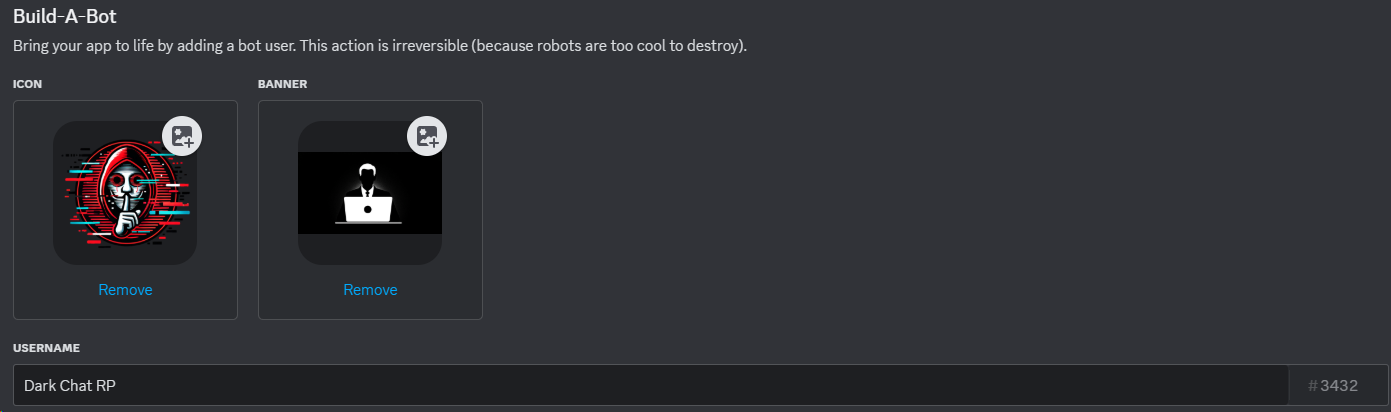](https://xelyos-wiki.s3.amazonaws.com/uploads/images/gallery/2025-04/q5Eimage.png) ##### 2. Récupérer le token du bot - ****Token :**** dans l’onglet Bot, copiez le token de votre bot. - ****Intégration :**** collez ce token dans le GForm que nous vous avons envoyé. [](https://xelyos-wiki.s3.amazonaws.com/uploads/images/gallery/2025-04/DCBimage.png) [](https://xelyos-wiki.s3.amazonaws.com/uploads/images/gallery/2025-04/KdAimage.png)****Attention :**** Le token est confidentiel, ne le partagez pas ailleurs !
--- ### Étape 5 : Mon bot reste chez moi Cette étape permet de faire en sorte que votre bot ne soit pas public et ne puisse être disponible que sur votre serveur Discord. ##### 1. Modifier le lien d'installation - Allez dans l’onglet ****Installation**** du [Discord Developer Portal](https://discord.com/developers/applications). - Dans la section ****Install Link****, définissez ****none**** pour empêcher le bot d'être ajouté à d'autres serveurs. [](https://xelyos-wiki.s3.amazonaws.com/uploads/images/gallery/2025-04/53kimage.png) ##### 2. Désactiver l'option Public Bot - Ensuite, allez dans l’onglet ****Bot****. - Décochez l'option ****Public Bot****. - Cela empêchera votre bot d’être visible publiquement et donc ajouté à d’autres serveurs. [](https://xelyos-wiki.s3.amazonaws.com/uploads/images/gallery/2025-04/GMOimage.png) # English # Creation and Configuration of the Discord Bot In this section, we will guide you step by step through the creation and configuration of a Discord bot designed for the administration and management of ****Xelyos**** solutions.****Xelyos Liability:**** Xelyos cannot be held responsible for the actions of the bot on the Discord server. The use and configuration of the bot are the sole responsibility of the server administrator.
****Bot Permissions:**** The bot does not require any specific permissions to perform actions on the server. Its only required access involves reading the list of users and their roles, as well as sending notifications.
****Creating a Dedicated Bot:**** To ensure compatibility and prevent any interference with existing bots, it is essential to create a bot exclusively dedicated to the system, without reusing credentials from a preexisting bot.
We will cover the following steps: - Creating the bot via the [Discord Developer Portal](https://discord.com/developers/applications). - Configuring the necessary permissions and settings. - Inviting the bot to your server! The goal is to make the process clear and accessible, even for those who are new to managing Discord bots. By following this guide, you will be able to quickly set up your bot. Let’s move on to the first step: creating the Discord bot. --- ### Step 1: Creating the Bot ##### 1. Access the Discord Developer Portal Go to the official [Discord Developer Portal](https://discord.com/developers/applications) website. This is where you will manage your bot and its settings. Make sure you are logged in with your Discord account. ##### 2. Create a New Application Once on the portal: - Click the ****"New Application"**** button at the top right of the screen. - A pop-up window will appear allowing you to name your application. [](https://xelyos-wiki.s3.amazonaws.com/uploads/images/gallery/2025-04/r9zimage.png) ##### 3. Enter the Application Name - Give your new application a name. It can be ****Dark Chat RP or XelNews**** or any other name that represents your bot. - Click ****"Create"**** to confirm the creation. [](https://xelyos-wiki.s3.amazonaws.com/uploads/images/gallery/2025-04/scaled-1680-/4Xximage.png) ##### 4. Add General Information After creating the application, you will be redirected to the bot management page. - ****Logo****: Upload an image to represent your bot (e.g., an avatar related to your server’s theme). - ****Name****: Verify or modify the bot’s name. - ****Description****: Add an optional description to explain what the bot does or provide details about its role. [](https://xelyos-wiki.s3.amazonaws.com/uploads/images/gallery/2025-04/scaled-1680-/dIrimage.png) --- ### Step 2: Inviting the Bot to Your Discord Although this step is done early in the process, it will allow us to quickly finalize the installation and move on to the next steps without complication. Don’t worry, this initial configuration doesn’t require advanced permissions for the bot, except the ability to send messages to users. ****Instructions for Installing the Bot:**** - ****Go to the "Installation" Section**** - In the Discord Developer Portal, go to the application you just created. - In the sidebar, click on the ****Installation**** tab. [](https://xelyos-wiki.s3.amazonaws.com/uploads/images/gallery/2025-04/lrBimage.png) - ****Set the Parameters**** - Set the parameters as shown in the image below. [](https://xelyos-wiki.s3.amazonaws.com/uploads/images/gallery/2025-04/snGimage.png) - ****Invite the Bot to Your Server**** - Copy the generated invite link for the bot from the ****Installation**** section. - Paste this link into your browser to invite the bot to the Discord server of your choice. - Select the target server and click ****Authorize****. [](https://xelyos-wiki.s3.amazonaws.com/uploads/images/gallery/2025-04/scaled-1680-/tvyimage.png) --- ### Step 3: Configuring OAuth2 This step is essential to enable user authentication within the xelyos solutions. We will configure the necessary information for the bot to interact correctly with the website. ##### 1. Retrieve the Client ID and Client Secret - ****Access the OAuth2 Information**** - From the [Discord Developer Portal](https://discord.com/developers/applications), select the application you have created. - Click on the ****OAuth2**** tab in the sidebar. [](https://xelyos-wiki.s3.amazonaws.com/uploads/images/gallery/2025-04/knRimage.png) - ****Retrieve the Client ID**** - In the ****General Information**** section, locate the ****Client ID**** field. - Click the ****Copy**** button next to it to copy the unique identifier of your application. - ****Generate and Retrieve the Client Secret**** - In the same ****General Information**** section, locate the ****Client Secret**** field. - Click ****Reset Secret**** to generate a new secret. - Once generated, copy the displayed ****Client Secret****. - ****Integrate the Information into the Form**** - The ****Client ID**** and ****Client Secret**** values are essential for correctly configuring the bot. - Enter them into the ****GForm**** that was sent to you. [](https://xelyos-wiki.s3.amazonaws.com/uploads/images/gallery/2025-04/poXimage.png) - - Paste the ****Client ID**** and ****Client Secret**** into the corresponding fields in the form. [](https://xelyos-wiki.s3.amazonaws.com/uploads/images/gallery/2025-04/Kgwimage.png) ##### 2. Configuring the Redirect URL To finalize the OAuth2 configuration, we need to define a redirect URL. This URL is used to verify and process the user information after authentication via Discord. - ****Access the Redirect Settings**** - Still in the ****OAuth2**** section of the Discord Developer Portal, locate the ****Redirects**** or ****Redirect URL**** section. [](https://xelyos-wiki.s3.amazonaws.com/uploads/images/gallery/2025-04/qxaimage.png) - ****Compose the Redirect URL**** - Take the domain name associated with your ****Dark Chat RP**** system. - Add the prefix `http://` in front of the domain name. - Then add `/connect-discord/check` at the end of the URL. ****Example:**** If your domain is `darkchatrp.xelyos.fr`, your redirect URL will be: [](https://xelyos-wiki.s3.amazonaws.com/uploads/images/gallery/2025-04/1ezimage.png) --- ### Step 4: Configuring the Bot Settings ##### 1. Set the Bot’s Name, Avatar, and Banner [](https://xelyos-wiki.s3.amazonaws.com/uploads/images/gallery/2025-04/Juzimage.png) ##### 2. Retrieve the Bot Token - ****Token****: In the ****Bot**** tab, copy the token of your bot. - ****Integration****: Paste this token into the ****GForm**** that was sent to you. [](https://xelyos-wiki.s3.amazonaws.com/uploads/images/gallery/2025-04/R7Rimage.png) [](https://xelyos-wiki.s3.amazonaws.com/uploads/images/gallery/2025-04/h03image.png)****Warning:**** The token is confidential, do not share it anywhere else!
--- ### Step 5: My Bot Stays with Me This step ensures that your bot is not public and can only be available on your Discord server. ##### 1. Modify the Installation Link - Go to the ****Installation**** tab in the Discord Developer Portal. - In the ****Install Link**** section, set it to ****none**** to prevent the bot from being added to other servers. [](https://xelyos-wiki.s3.amazonaws.com/uploads/images/gallery/2025-04/485image.png) ##### 2. Disable the Public Bot Option - Next, go to the ****Bot**** tab. - Uncheck the ****Public Bot**** option. - This will prevent your bot from being publicly visible and thus added to other servers. [](https://xelyos-wiki.s3.amazonaws.com/uploads/images/gallery/2025-04/H4vimage.png)