# User

# Register/Login

<p class="callout warning"><span style="white-space: pre-wrap;">If Dark Chat is integrated into an in-game platform, </span>**such as FiveM**, registering and connecting with Discord may not be possible. In such cases, alternative authentication methods are provided.</p>

### Creating an Account

To start using Dark Chat RP:

1. Visit the Dark Chat homepage.
2. <span style="white-space: pre-wrap;">Click on the </span>****Sign Up****<span style="white-space: pre-wrap;"> button.</span>

[![image.png](https://xelyos-wiki.s3.amazonaws.com/uploads/images/gallery/2025-04/scaled-1680-/TeGimage.png)](https://xelyos-wiki.s3.amazonaws.com/uploads/images/gallery/2025-04/TeGimage.png)

#### Accepting the Rules

Once logged in, you must accept the rules before you can begin using the system.

[![image.png](https://xelyos-wiki.s3.amazonaws.com/uploads/images/gallery/2025-04/scaled-1680-/kOCimage.png)](https://xelyos-wiki.s3.amazonaws.com/uploads/images/gallery/2025-04/kOCimage.png)

---

### Logging In

1. Navigate to the login page.
2. Choose one of the following methods:

- ****Discord Authentication****:
    - Click the "Log in with Discord" button and follow the instructions to connect using your Discord account.
- ****Username and Password****:
    - <span style="white-space: pre-wrap;">Enter your username and password, then click </span>****Log In****.

<p class="callout warning">To use Dark Chat, you must also be a member of the server's Discord community.</p>

# Manage my option

### Editing Account Information

- Access Your Account Settings

[![image.png](https://xelyos-wiki.s3.amazonaws.com/uploads/images/gallery/2025-04/scaled-1680-/U8rimage.png)](https://xelyos-wiki.s3.amazonaws.com/uploads/images/gallery/2025-04/U8rimage.png)

<p class="callout info">Your username and password enable you to log in to Dark Chat when Discord authentication is not available.</p>

- By default, the username and password are generated randomly.
- ****Configure Discord Notifications****
    - In the settings, you can choose whether to enable or disable notifications sent via Discord direct messages (DM).

# Channels

### Joining a Channel

- ****From the Homepage****
    - Enter the name of the channel you wish to join in the search bar.

[![image.png](https://xelyos-wiki.s3.amazonaws.com/uploads/images/gallery/2025-04/scaled-1680-/zQXimage.png)](https://xelyos-wiki.s3.amazonaws.com/uploads/images/gallery/2025-04/zQXimage.png)

- ****Access Messages****
    - Once you join a channel, you will gain access to its messages.
- ****Channel History****
    - Any channel you join will appear in the history panel on the left side of the interface.

[![image.png](https://xelyos-wiki.s3.amazonaws.com/uploads/images/gallery/2025-04/scaled-1680-/f4Cimage.png)](https://xelyos-wiki.s3.amazonaws.com/uploads/images/gallery/2025-04/f4Cimage.png)

---

### Actions Available in a Channel

##### Enable/Disable Discord Notifications

[![image.png](https://xelyos-wiki.s3.amazonaws.com/uploads/images/gallery/2025-04/scaled-1680-/8rdimage.png)](https://xelyos-wiki.s3.amazonaws.com/uploads/images/gallery/2025-04/8rdimage.png)

- Notifications are active from the moment you leave the channel.
- You will receive a notification whenever a new message is posted.
- If multiple messages arrive afterward, only one notification will be sent until you revisit the channel.

##### Leave the Channel

[![image.png](https://xelyos-wiki.s3.amazonaws.com/uploads/images/gallery/2025-04/scaled-1680-/Sn3image.png)](https://xelyos-wiki.s3.amazonaws.com/uploads/images/gallery/2025-04/Sn3image.png)

# Messages

### Sending Messages

#### Sending Text Messages

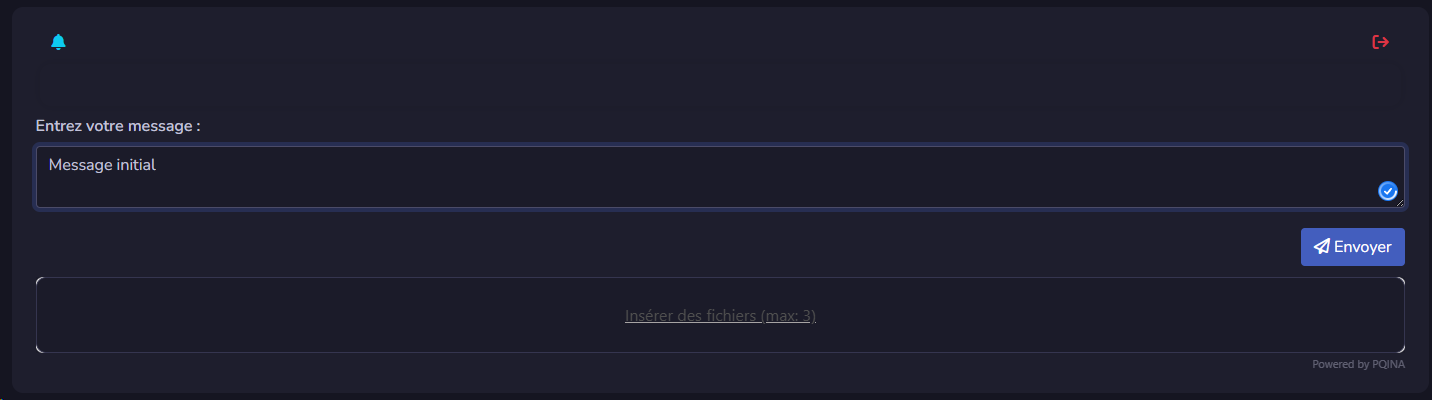
- <span style="white-space: pre-wrap;">You can send a message by clicking the </span>****Send****<span style="white-space: pre-wrap;"> button or pressing the </span>****Enter****<span style="white-space: pre-wrap;"> key.</span>

#### Sending Images

1. ****Drag and Drop****
    - Drag your image into the drop zone located below the text area.
2. ****Copy and Paste****
    - <span style="white-space: pre-wrap;">If you have a screenshot, use </span>****Ctrl+V****<span style="white-space: pre-wrap;"> in the text area to integrate the image directly into your message.</span>

[![image.png](https://xelyos-wiki.s3.amazonaws.com/uploads/images/gallery/2025-04/scaled-1680-/3UWimage.png)](https://xelyos-wiki.s3.amazonaws.com/uploads/images/gallery/2025-04/3UWimage.png)

<table id="bkmrk--1" style="border-collapse: collapse; width: 100%;"><colgroup><col style="width: 50.0596%;"></col><col style="width: 50.0596%;"></col></colgroup><tbody><tr><td>[![image.png](https://xelyos-wiki.s3.amazonaws.com/uploads/images/gallery/2025-04/scaled-1680-/mkeimage.png)](https://xelyos-wiki.s3.amazonaws.com/uploads/images/gallery/2025-04/mkeimage.png)

</td><td>[![image.png](https://xelyos-wiki.s3.amazonaws.com/uploads/images/gallery/2025-04/scaled-1680-/HQrimage.png)](https://xelyos-wiki.s3.amazonaws.com/uploads/images/gallery/2025-04/HQrimage.png)

</td></tr></tbody></table>

---

### Replying to a Message

1. ****Select a Message to Reply To****
    - Double-click on the message you want to reply to.
    - The selected message will appear on the left and will be highlighted in a different color.
2. ****Reply to Indicator****
    - <span style="white-space: pre-wrap;">A </span>****Reply to****<span style="white-space: pre-wrap;"> banner will appear above the text input area.</span>
3. ****Cancel a Reply****
    - <span style="white-space: pre-wrap;">To cancel the reply, click the </span>****X****<span style="white-space: pre-wrap;"> icon on the left of the </span>****Reply to****<span style="white-space: pre-wrap;"> banner.</span>
4. ****Send and View Linked Replies****
    - <span style="white-space: pre-wrap;">After sending your message, an indication stating </span>****Replying to message****<span style="white-space: pre-wrap;"> will appear above it.</span>
    - To view the linked message, click on this indication.

[![image.png](https://xelyos-wiki.s3.amazonaws.com/uploads/images/gallery/2025-04/scaled-1680-/jZTimage.png)](https://xelyos-wiki.s3.amazonaws.com/uploads/images/gallery/2025-04/jZTimage.png)

[![image.png](https://xelyos-wiki.s3.amazonaws.com/uploads/images/gallery/2025-04/scaled-1680-/P9Aimage.png)](https://xelyos-wiki.s3.amazonaws.com/uploads/images/gallery/2025-04/P9Aimage.png)

# Channel Groups

Channel groups allow you to group multiple channels together to better organize your content.

#### Creating a Channel

To add a new channel:

- <span style="white-space: pre-wrap;">Click on </span>****"Manage Groups"****.
- In the interface:
    - ****On the left****: you'll find the list of existing groups.
    - ****On the right****: a form allows you to add a new channel.

[![image.png](https://xelyos-wiki.s3.amazonaws.com/uploads/images/gallery/2025-07/scaled-1680-/w2Wimage.png)](https://xelyos-wiki.s3.amazonaws.com/uploads/images/gallery/2025-07/w2Wimage.png)

Once the channel is created, you can click on it to open and start using it.

#### Organizing Channels

You can move a channel from one group to another using simple drag and drop.

[![image.png](https://xelyos-wiki.s3.amazonaws.com/uploads/images/gallery/2025-07/scaled-1680-/gf7image.png)](https://xelyos-wiki.s3.amazonaws.com/uploads/images/gallery/2025-07/gf7image.png)

#### Deleting a Channel

To delete a channel, go back to "Manage Groups" and use the list on the left to remove it.

<p class="callout warning">Deleting a channel group will also delete all channels it contains. Please double-check before proceeding.</p>